
Although manually searching for and downloading apps has remained the most popular method of installing apps on Windows systems for years, these aren’t the only options available. The Store has been around for a long time, but for years it didn’t support traditional apps and tools. However, there is another tool that makes managing apps much easier.
In Windows 10 (and newer versions), Windows 11, and Windows Server, there is a built-in tool called WinGet (Windows Package Manager).
This official tool allows you to quickly search for, install, update, and uninstall programs using simple commands in a terminal (e.g., PowerShell), which saves time and automates software management.
To use the program, open Command Prompt or PowerShell.
If you want to install an application, first check whether its installation package is available.
You can do this using the following command:
winget search <appname>
Replace <appname> with the name of the application. For example, for 7-Zip, we'll use the command:
winget search 7-Zip
Jako wynik powinniśmy otrzymać coś podobnego do:
Name Id Version Match Source ------------------------------------------------------------------------------------ 7-Zip 7zip.7zip 26.02 ProductCode: 7-zip winget 7-Zip ZS mcmilk.7zip-zstd 26.02-v1.5.7-R2 Tag: 7-zip winget 7-Zip ZS Non Darkmode mcmilk.7zip-zstd-ndm 26.02-v1.5.7-R2 Tag: 7-zip winget Dark7zip ozone10.7zip.Dark 26.02-0.70.0 Tag: 7-zip winget 7zr 7zip.7zr 26.02 Tag: 7-zipextra winget
In that case, you should select the correct package. You can usually identify it by its name.
To install the package, use the following command:
winget install <appname
In this case:
winget install 7-Zip
The following command is worth noting
winget upgrade
This command will display a list of available updated packages. It is important to note that the programme can also identify updated versions of applications that were installed using the traditional method. If you have installed a programme the traditional way – by downloading it from a website and installing it – and it is also available via WinGet, the ‘upgrade’ command will not only display the available update but will also allow you to update the programme.
You can perform the update using the following command:
winget upgrade <appname>
In the case of complex app names, it is best to specify the ID as the ‘appname’, as this works with both the ‘search’ and ‘upgrade’ commands.
And how do you remove an installed app? You use the ‘uninstall’ command:
winget uninstall <appname>
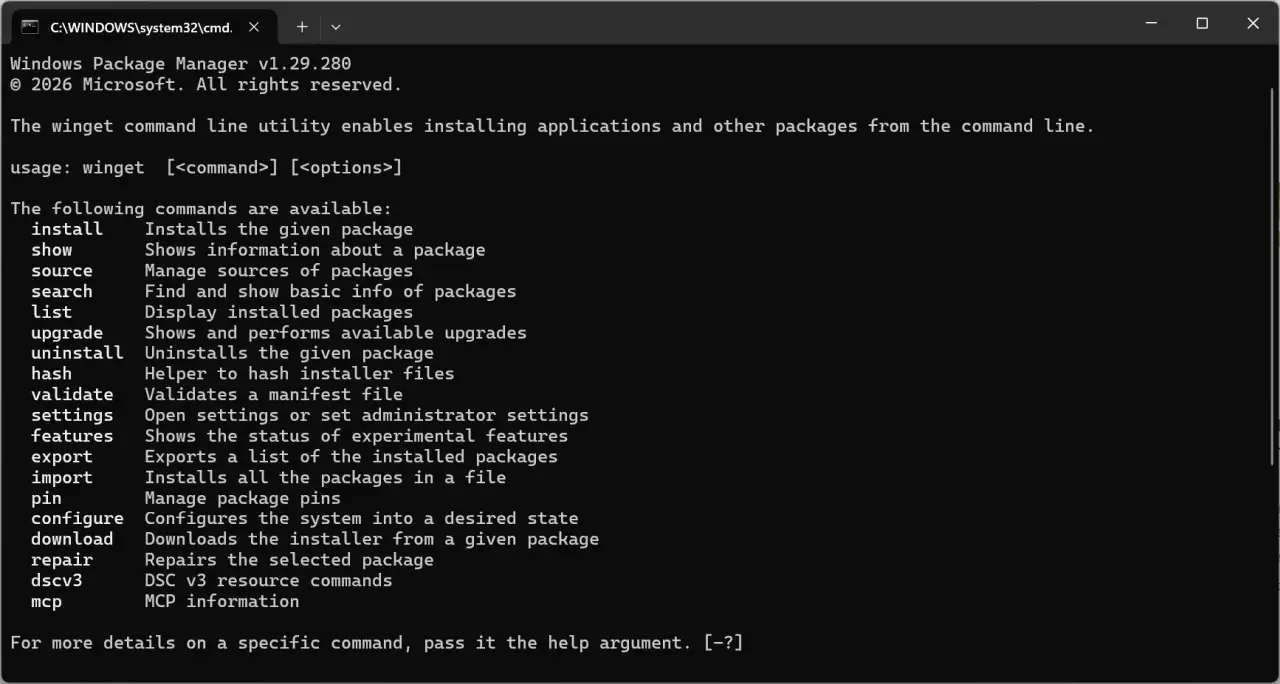
Winget has a few more commands; you can view the full list by typing:
winget --help
The tool available in the system not only makes it easier to manage already installed applications, but also allows you to download and/or install new ones. The option to update already installed programmes without having to download them manually from the internet is particularly useful.
Add new comment