

Windows 10 has been without technical support since October. Home users can extend it for another year free of charge. However, companies must pay for additional support. If you have a computer that meets the requirements of the newer edition of the system, you can install it as an update from the current edition or from scratch. Today, we will show you how to install Windows 11 from scratch.
To install Windows 11 from scratch, we need a system media. In the past, DVDs were used for this purpose. Nowadays, we can use a flash drive. Don't have a media? No problem. If you have a license for Windows 11 or Windows 10, you can download the system image from the manufacturer's website.
To do this, go to the Windows 11 download page. There are three options to choose from.
- Windows 11 Installation Assistant - allows you to upgrade from your current version of the system.
- Create Windows 11 installation media - allows you to create installation media on a DVD or flash drive
- Download Windows 11 disk image (ISO) for x64 devices allows you to download an ISO image for later burning to a disc or adapting to a flash drive.
If you want to install the system from scratch, use the second option. After downloading the application, simply run it and follow the wizard's instructions.
What next?
To install the system, we need to make sure that the computer is able to boot from the given media. Depending on the computer you have, you need to enter the UEFI settings and set it to boot from USB or DVD. These settings may vary depending on the device manufacturer. It is best to refer to the user manual.
We have the media, we have the startup configured. So let's start the computer.
If you see the message below, press any key on the keyboard.

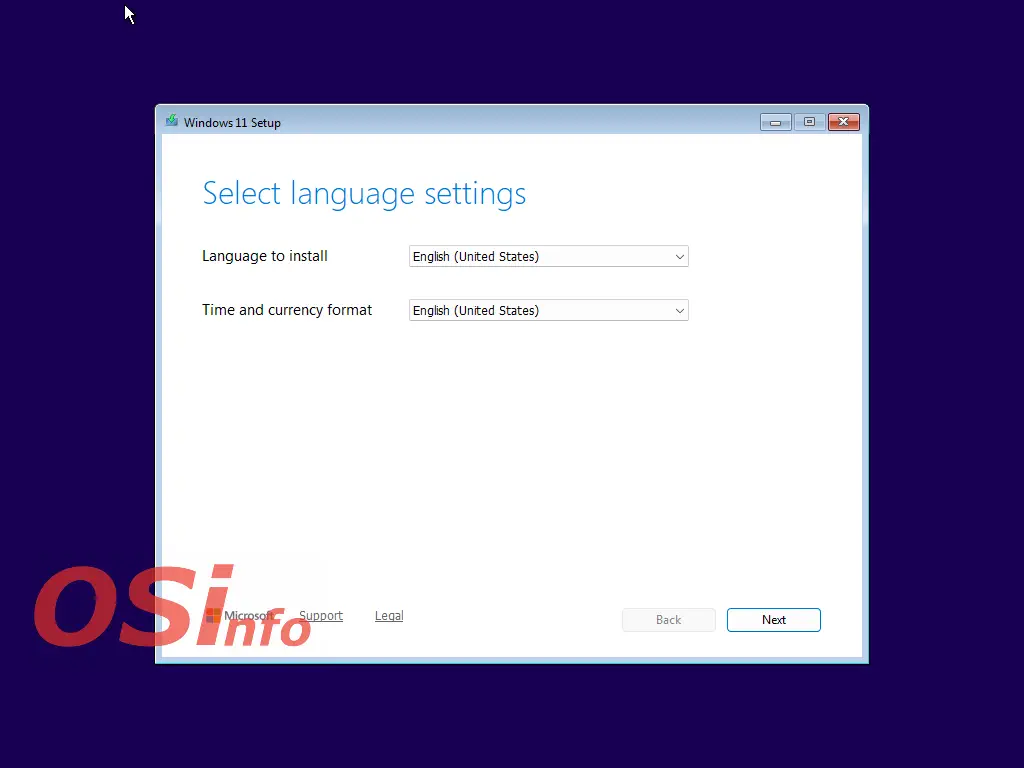
After a moment, you should see a screen with language options. Select your preferred language and time format, then click Next.
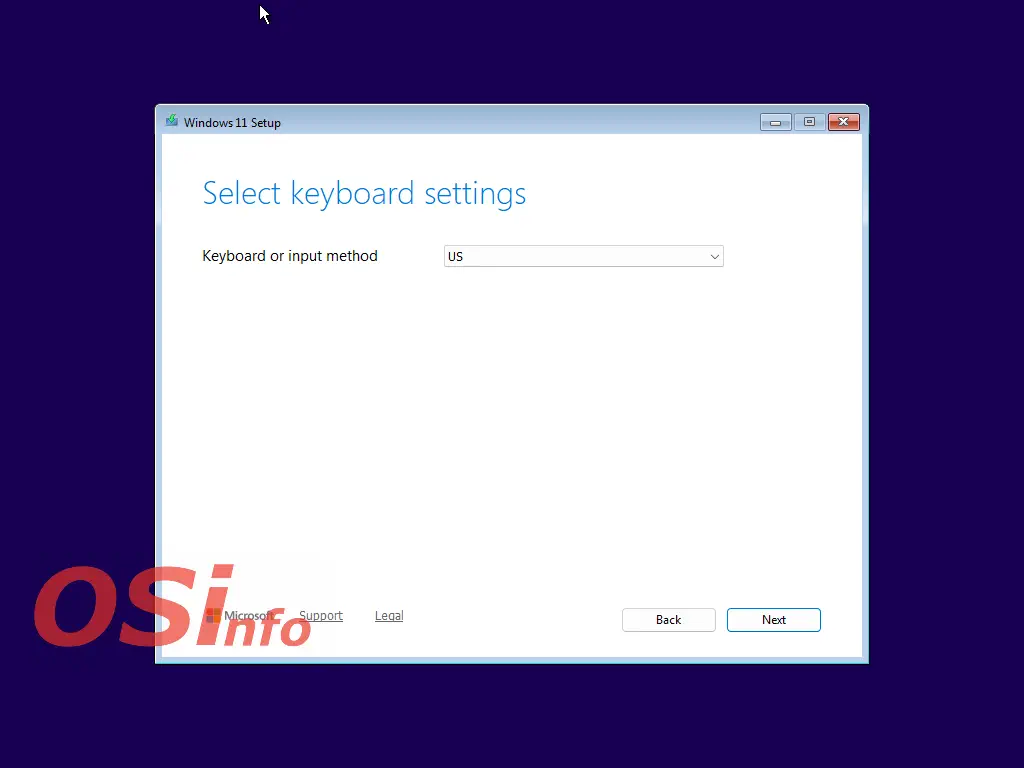
In the next window, we need to select the keyboard layout. After selecting it, click Next.
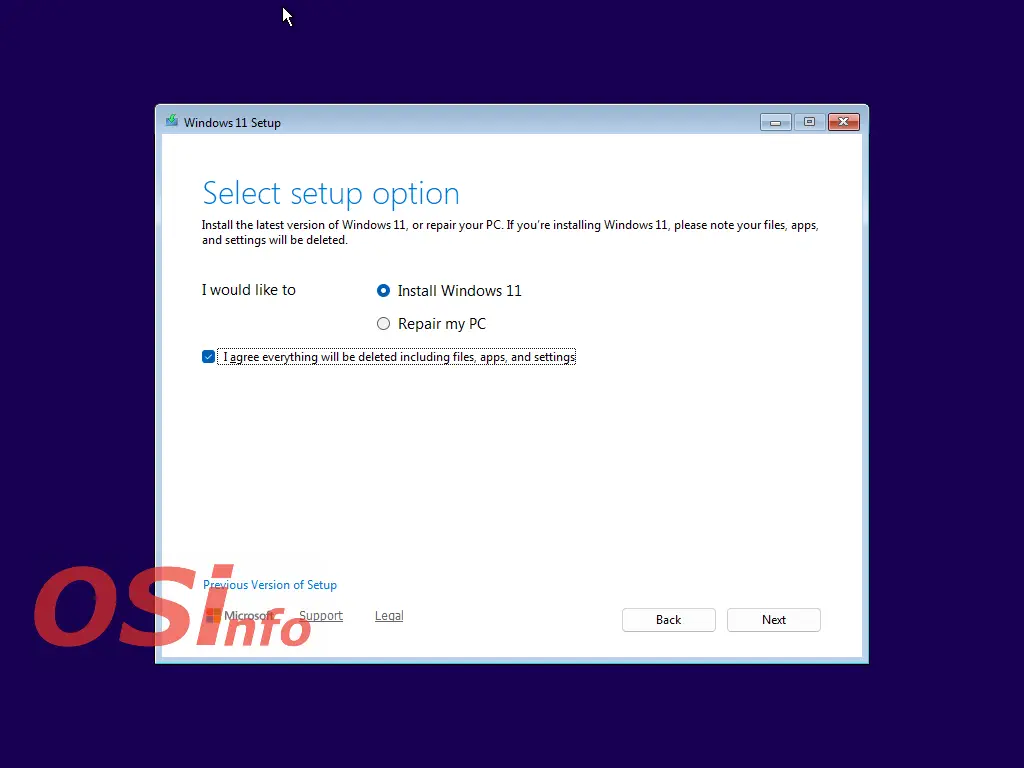
The next window shows the configuration options. If you are installing the system from scratch, select “Install Windows 11” and “I agree to delete everything...” and click “Next.” Please note that all data will be deleted from the disk. Therefore, if you have anything important on the disk, you should first make a backup copy on an external medium.
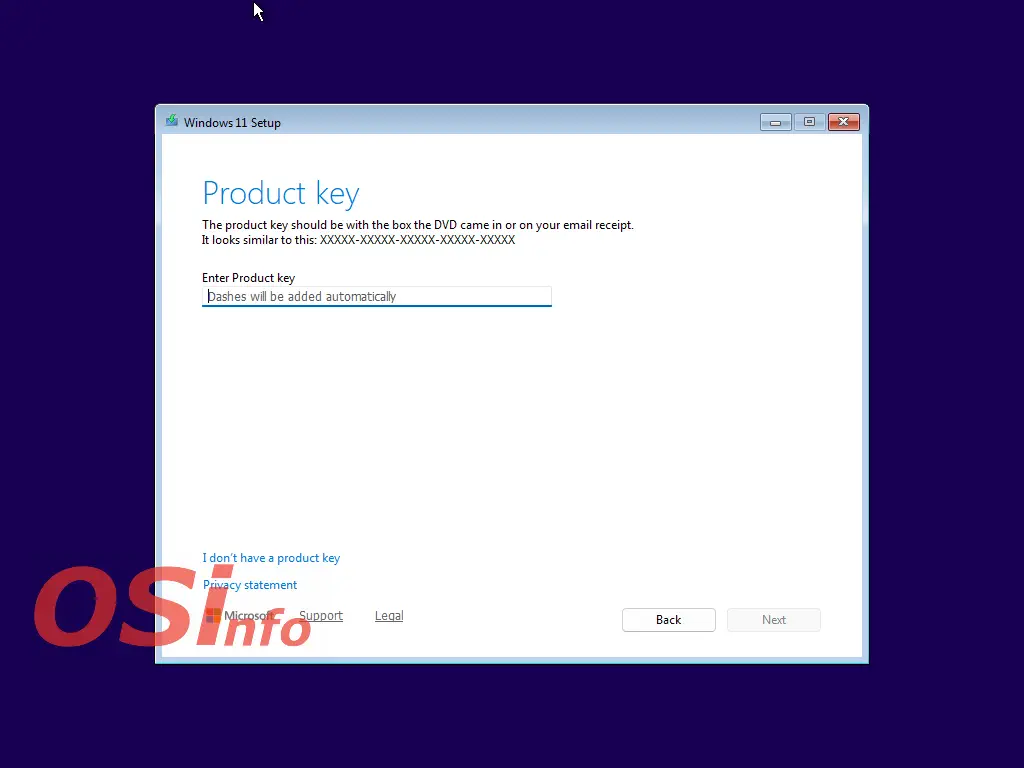
The next window allows you to enter the product key. If you have the key handy, enter it. You can also select “I don't have a product key.” This option allows you to enter the key after the system has been installed. Click “Next.”

If we chose not to use a key, in the next step we will have to select the correct version of the system from the list. If we entered the key earlier, the system version will be selected automatically. After selecting, click “Next.”

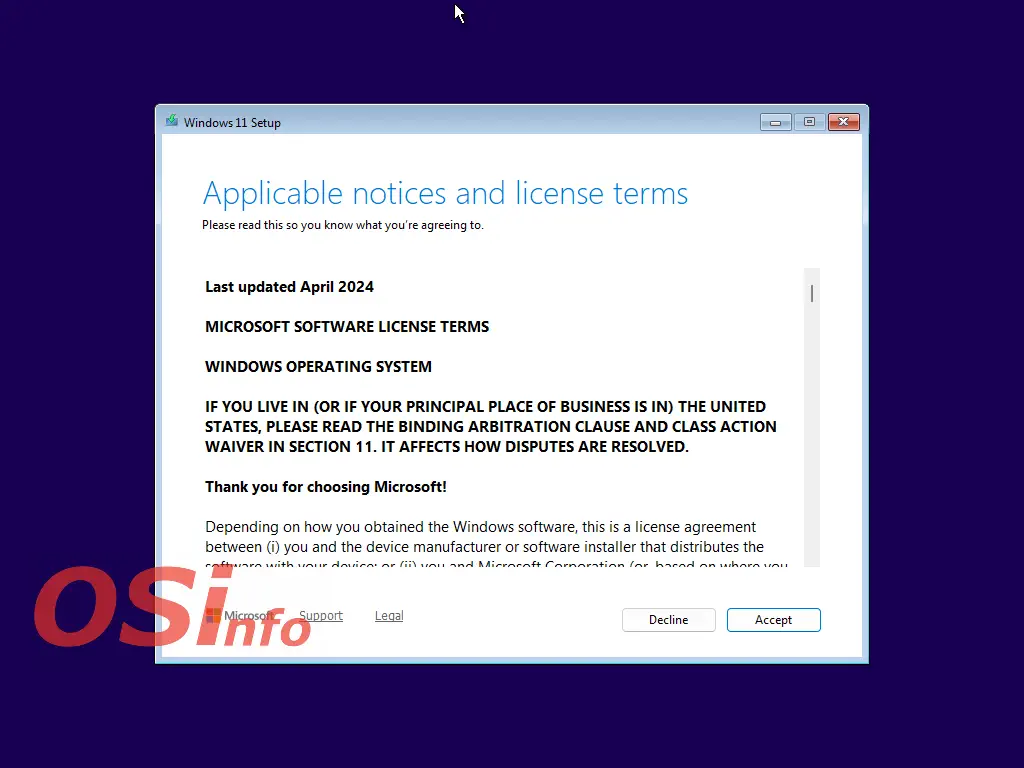
The next step is the license agreement. Read the license agreement and if you agree to its terms, click “Accept.” If you do not agree, the installer will not allow the system to be installed.
We are waiting...

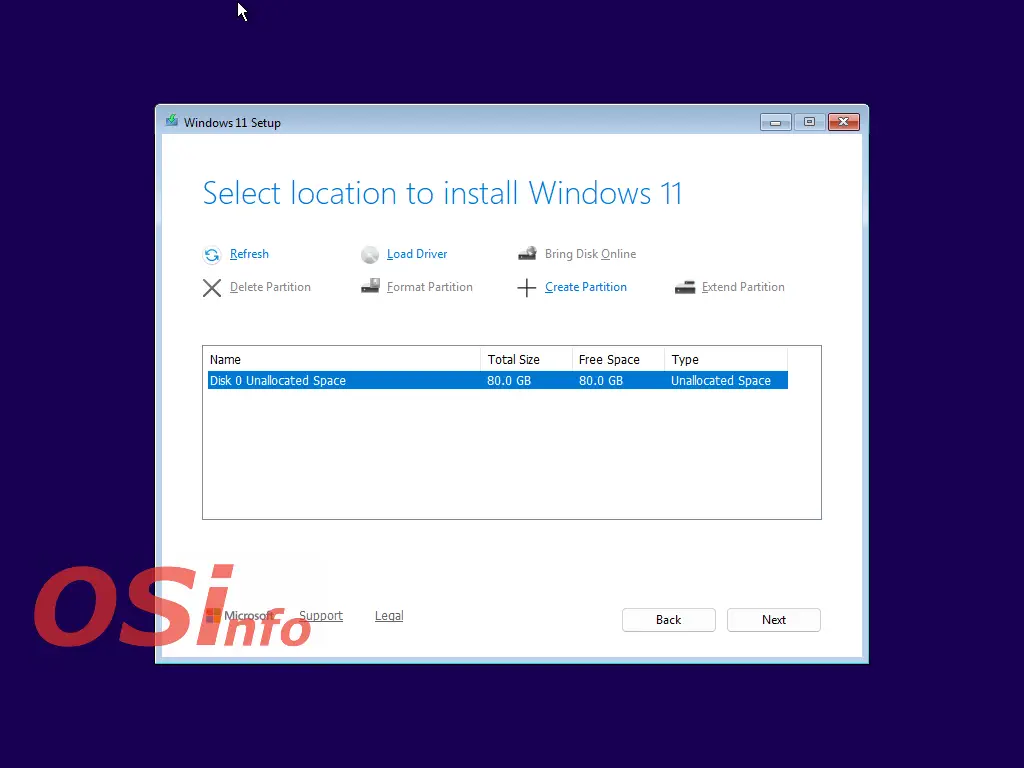
The next step is to select the location for installing the system. After making your selection, click “Next.”
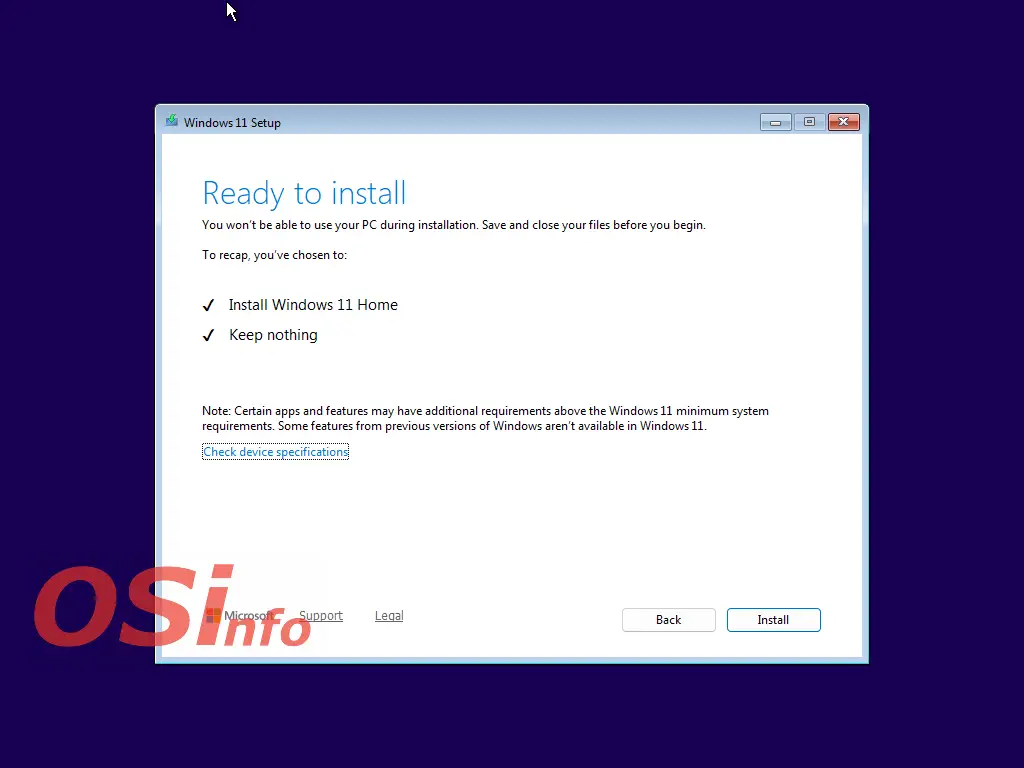
The next screen confirms the settings. Click “Install.”
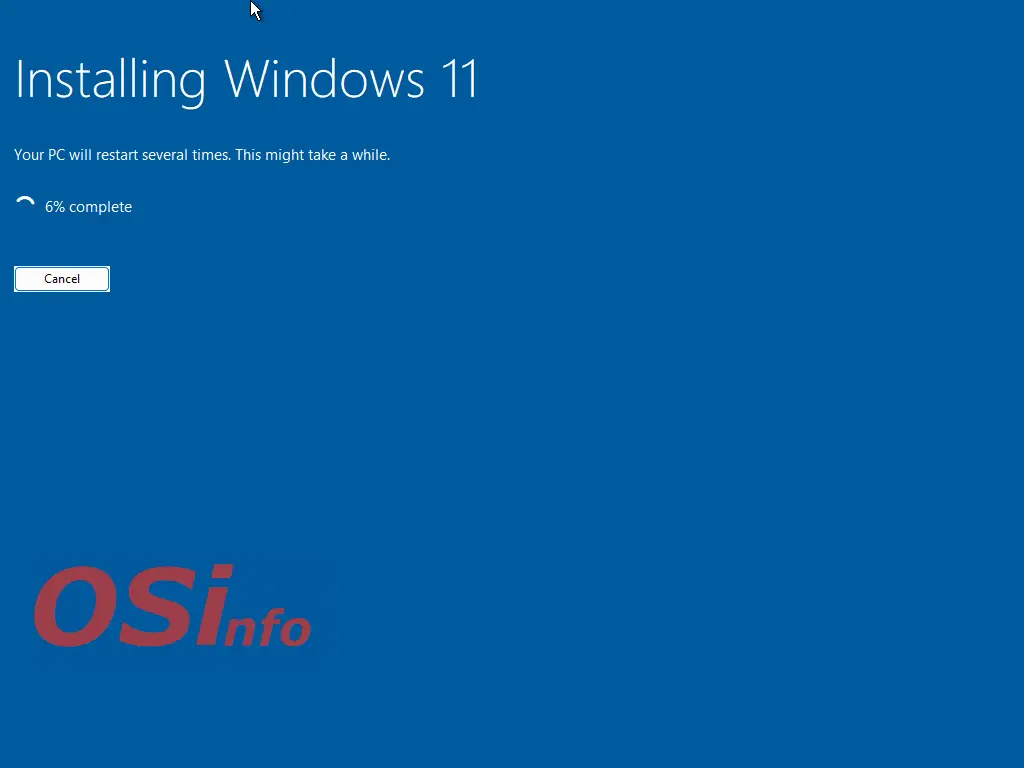
The next step is the actual installation of the system. At this point, we can only wait for the installer to complete this step.
We are waiting...
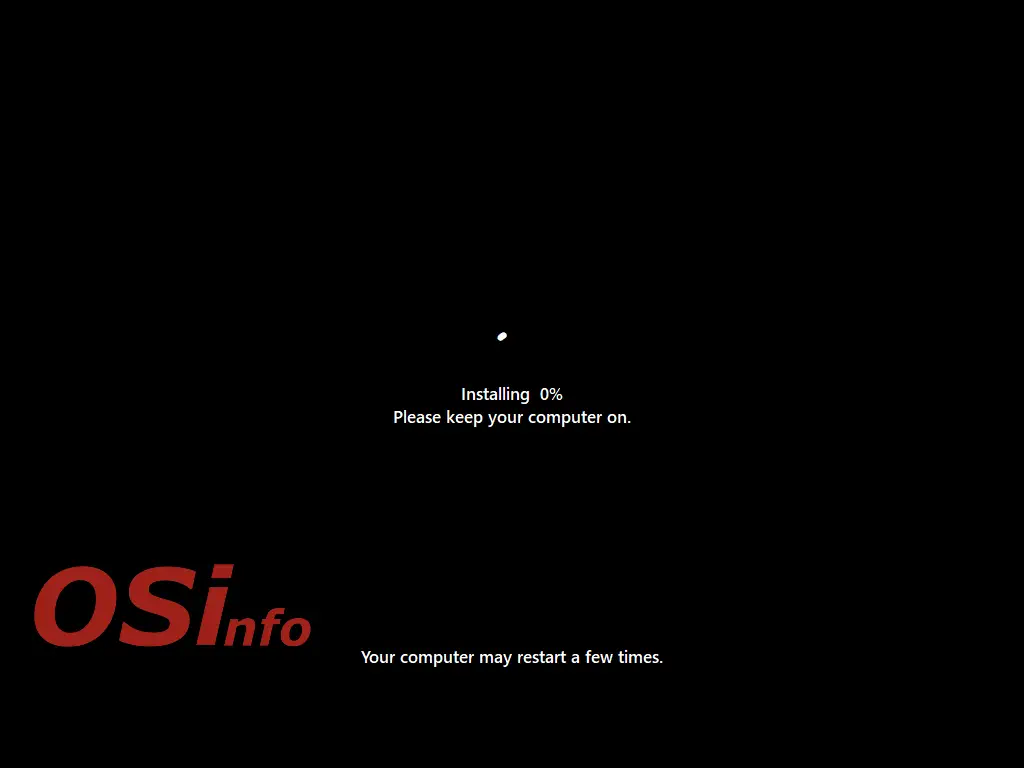
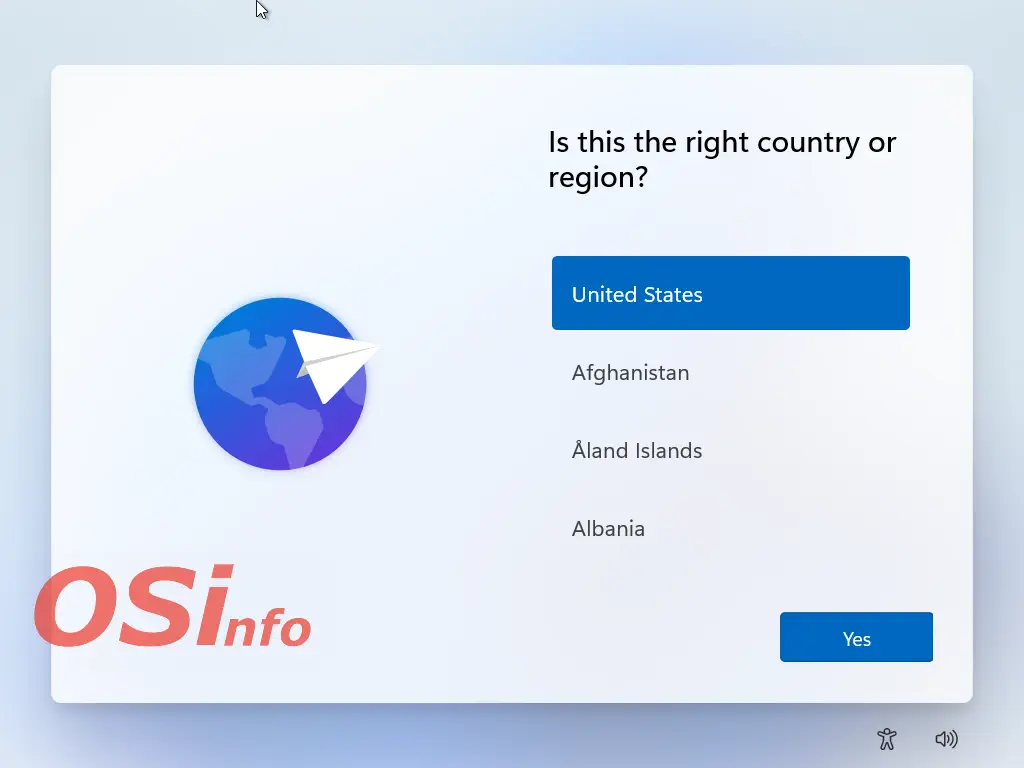
After installation is complete, a series of configuration wizards will launch. The first one is to reselect the region. Select the correct one from the list and click “Yes.”
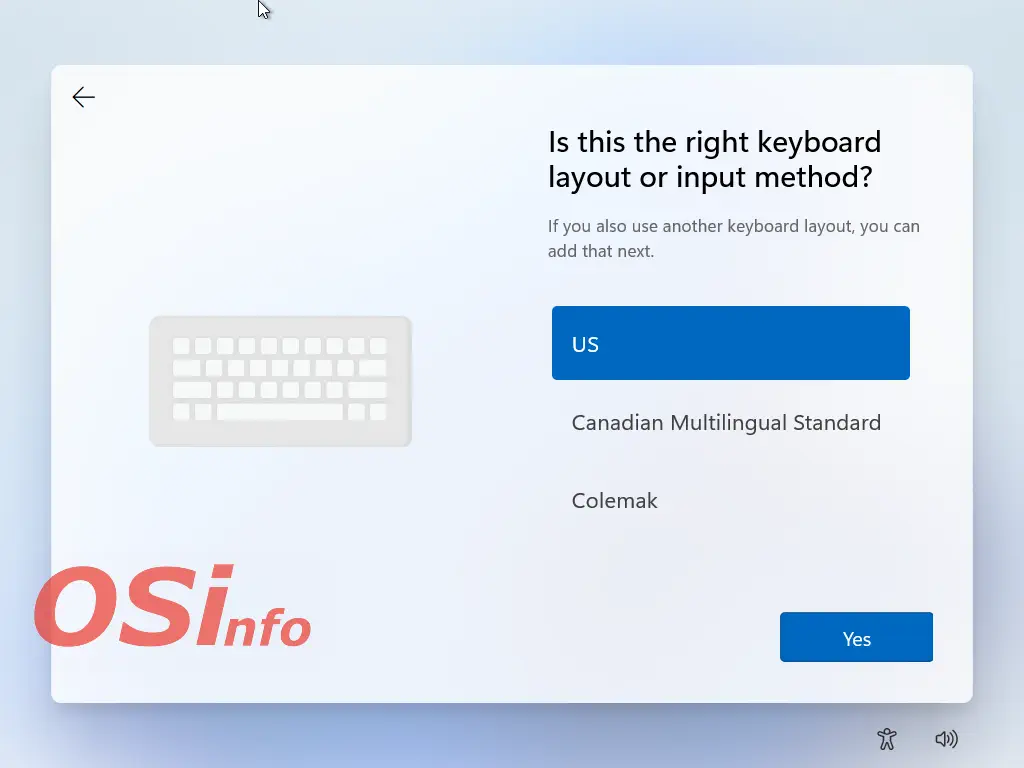
In the next window, we again have a choice of keyboard layout. Select the correct one and click “Yes.”
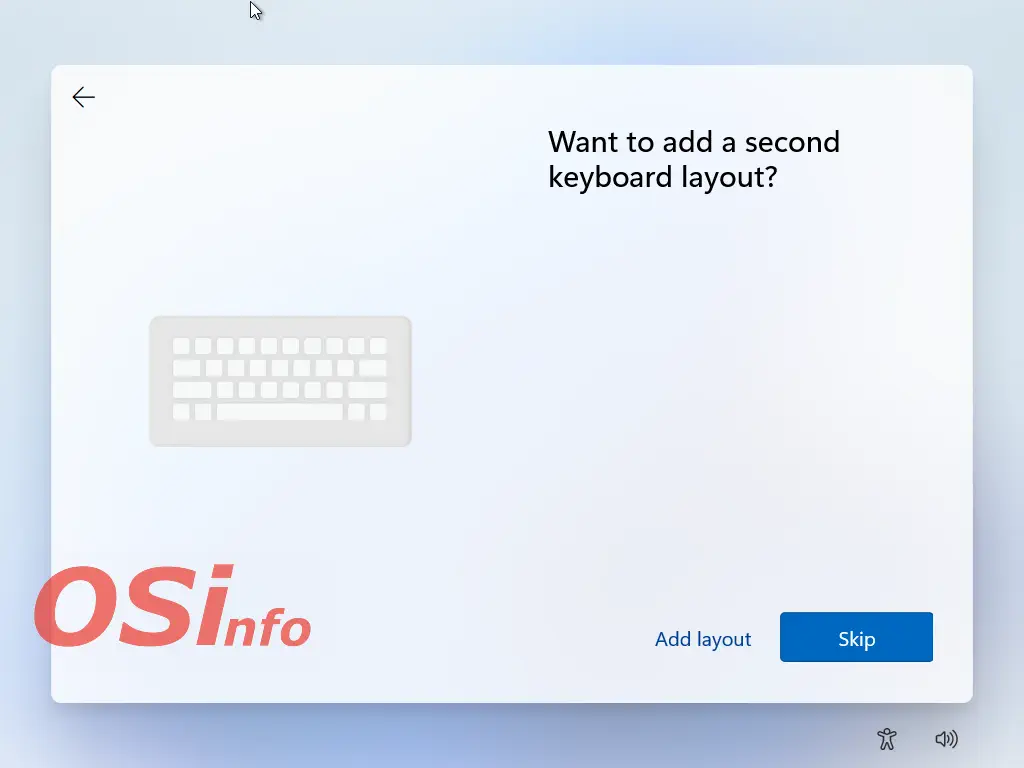
We can also add a second, additional keyboard layout. If we don't need it, click “Skip.”
We are waiting. The installer is checking the availability of the installation.
We are waiting...
We are waiting...
We are waiting...
Restarting the system. The installer is preparing updates.
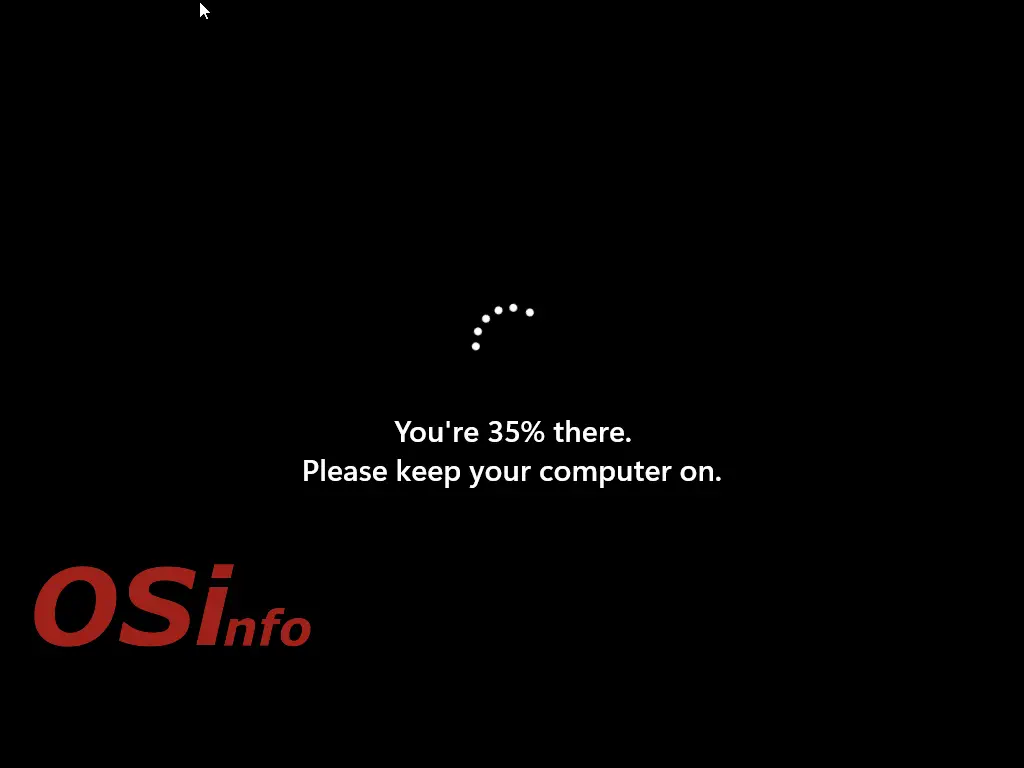
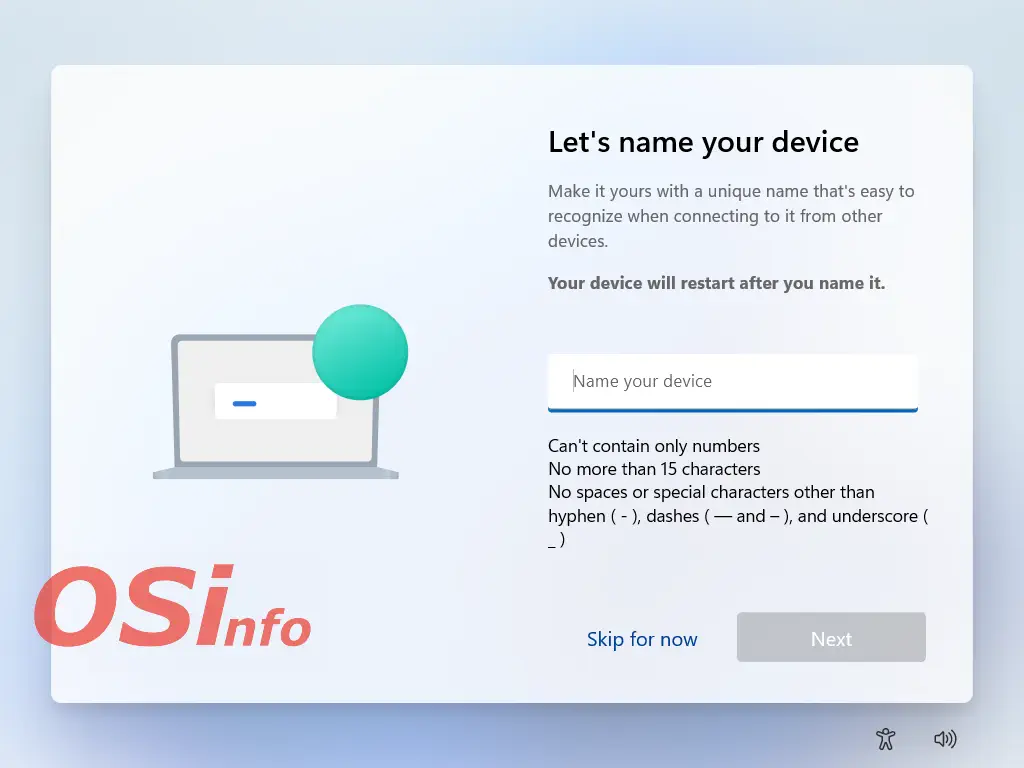
The next step is to choose a name for the computer. The computer will be visible on the home network under the name entered here. Enter any name and click “Next.”
Checking for updates again.
If updates are available, their installation will begin here.


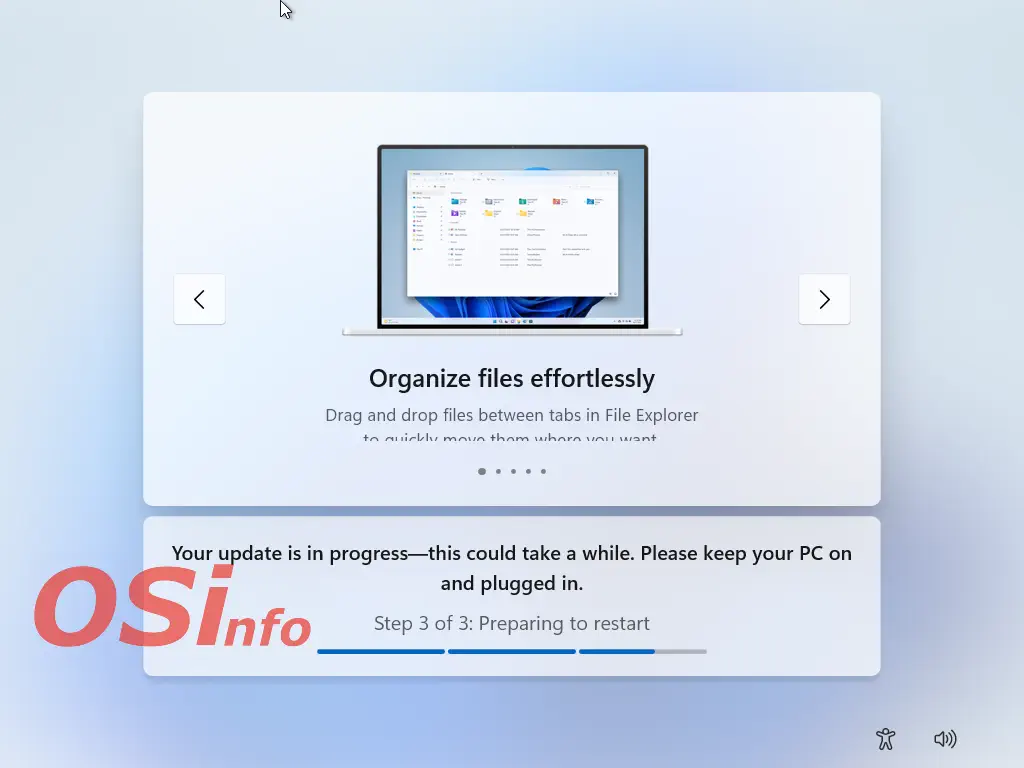
After installation, the system will automatically restart.
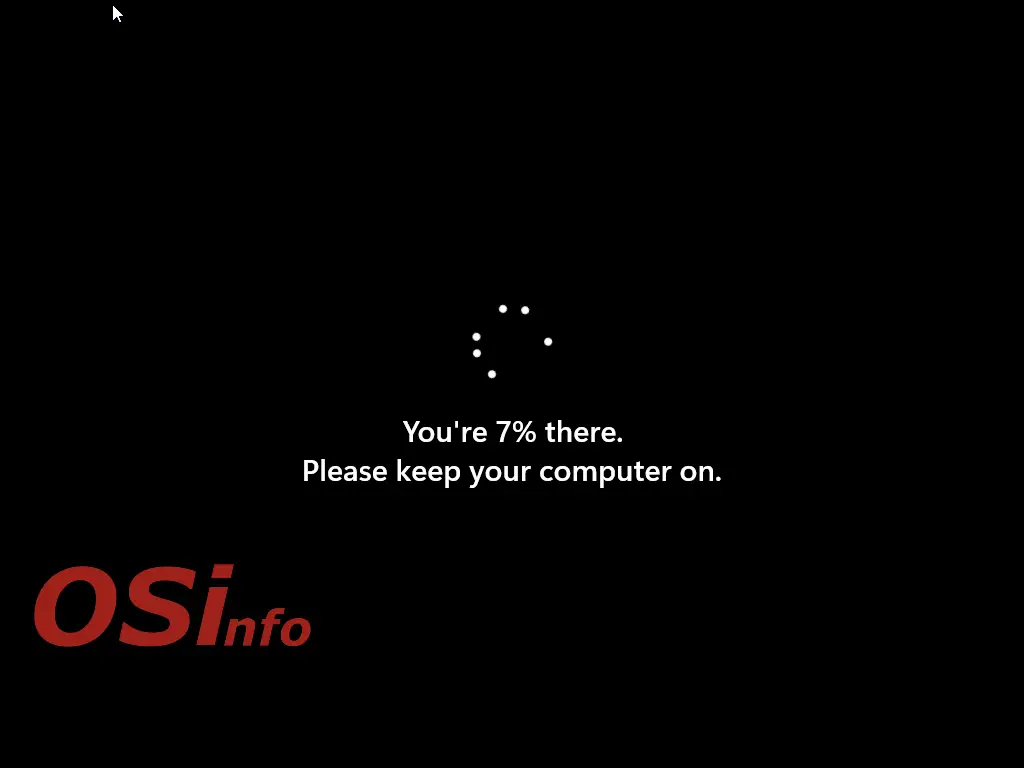
After restarting, we will see the windows of another configuration wizard. Currently, installation using official methods requires logging in with a Microsoft account. Select the “Sign in” button on the screen.
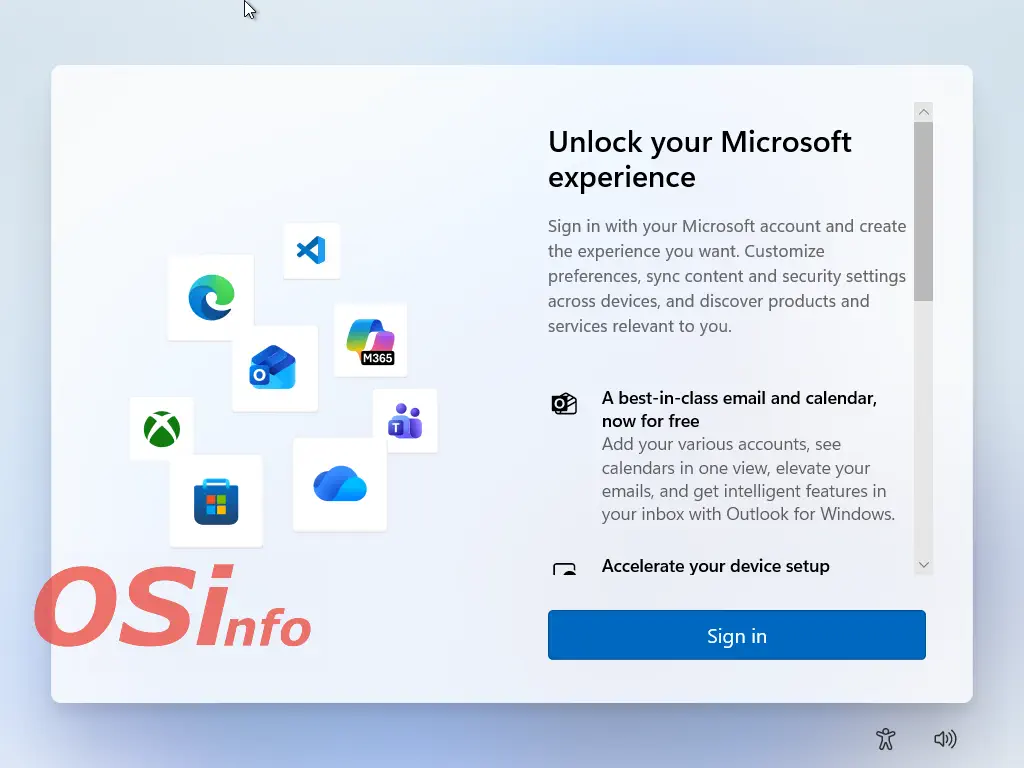
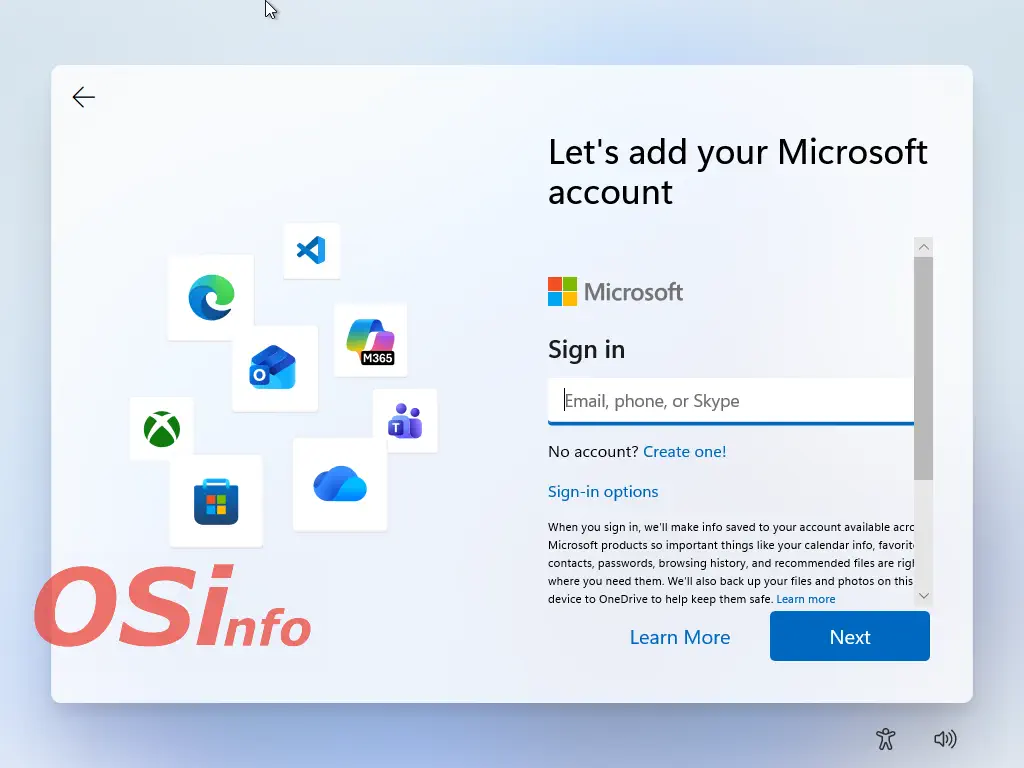
Here, we can create a new account or enter the details of an existing one. If we do not have an account, we select “Create one!” If we do have an account, we enter its name and click “Next.”
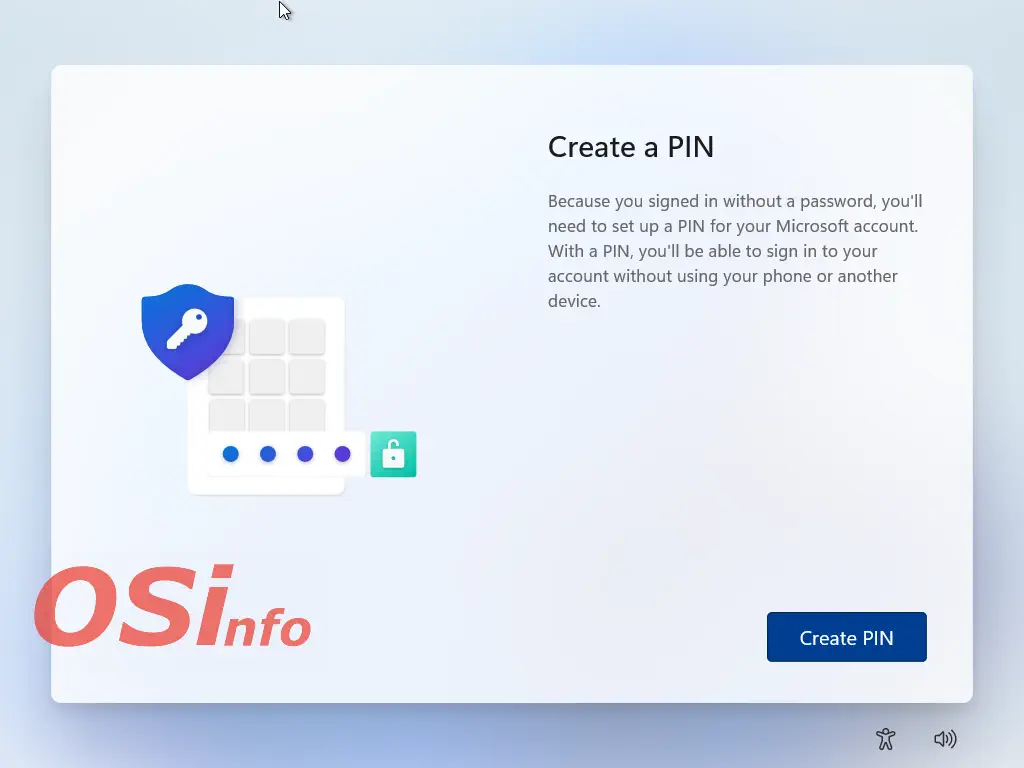
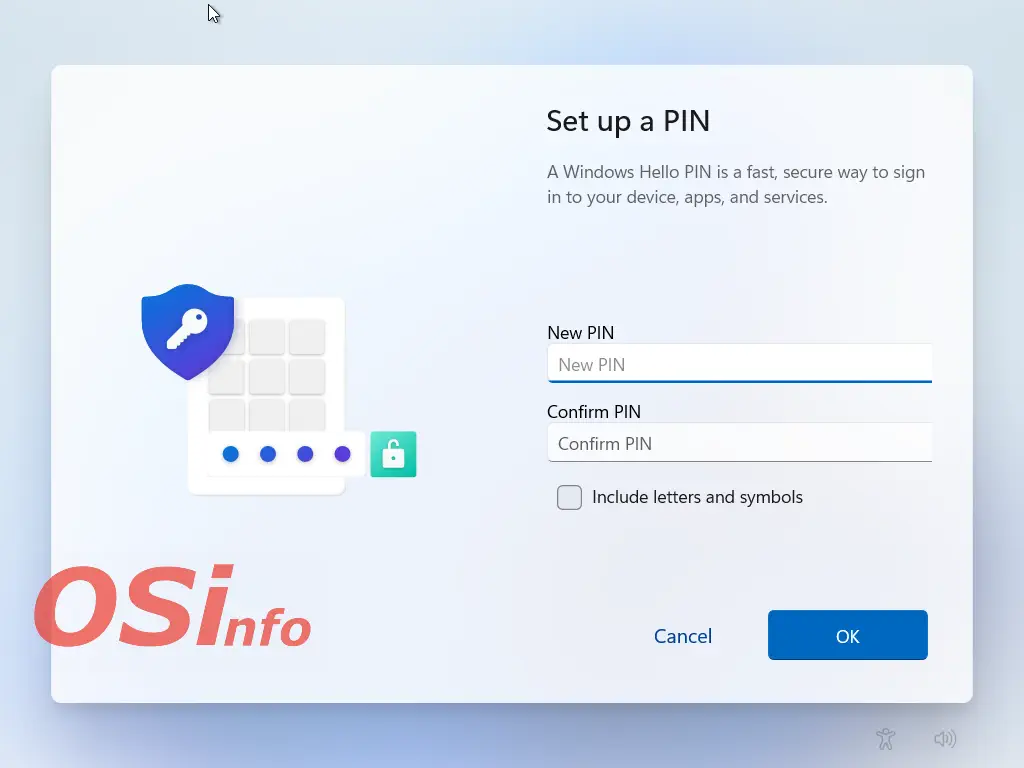
The next wizard will prompt you to create an access PIN for the system. Click “Create PIN”.
Then enter the PIN code twice and click “OK.”
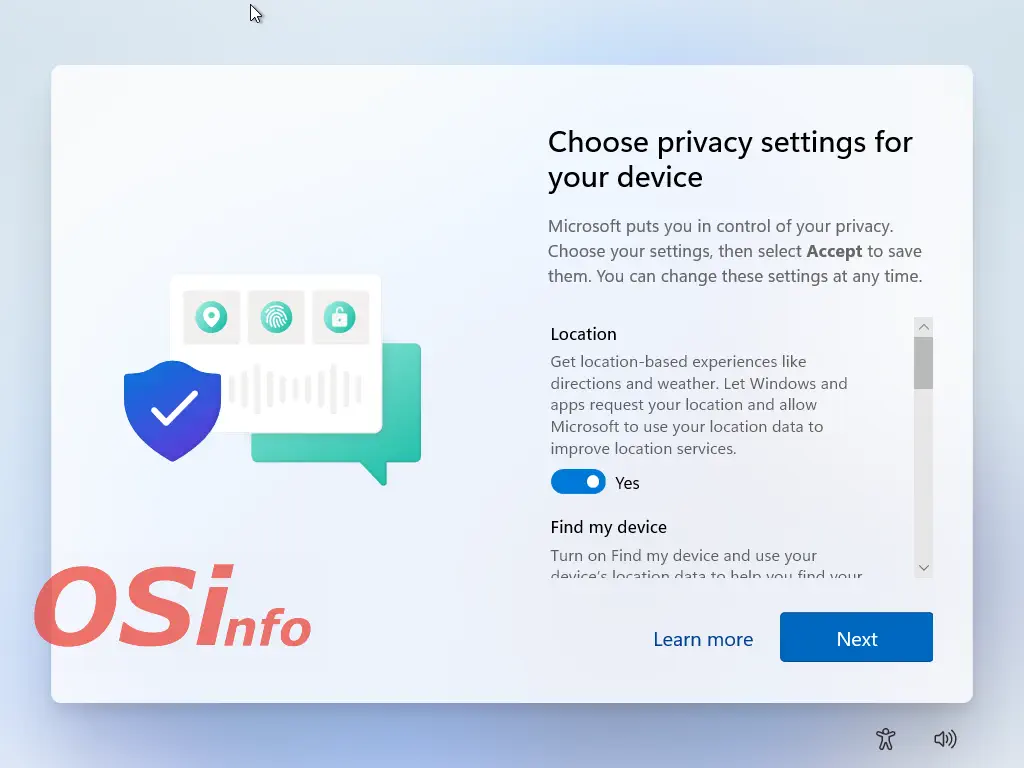
In the next step, we need to select a number of settings that affect our privacy.
If we have entered the details of an existing account and already had Windows 10 or 11 installed on another computer, we will be able to restore some of our settings.
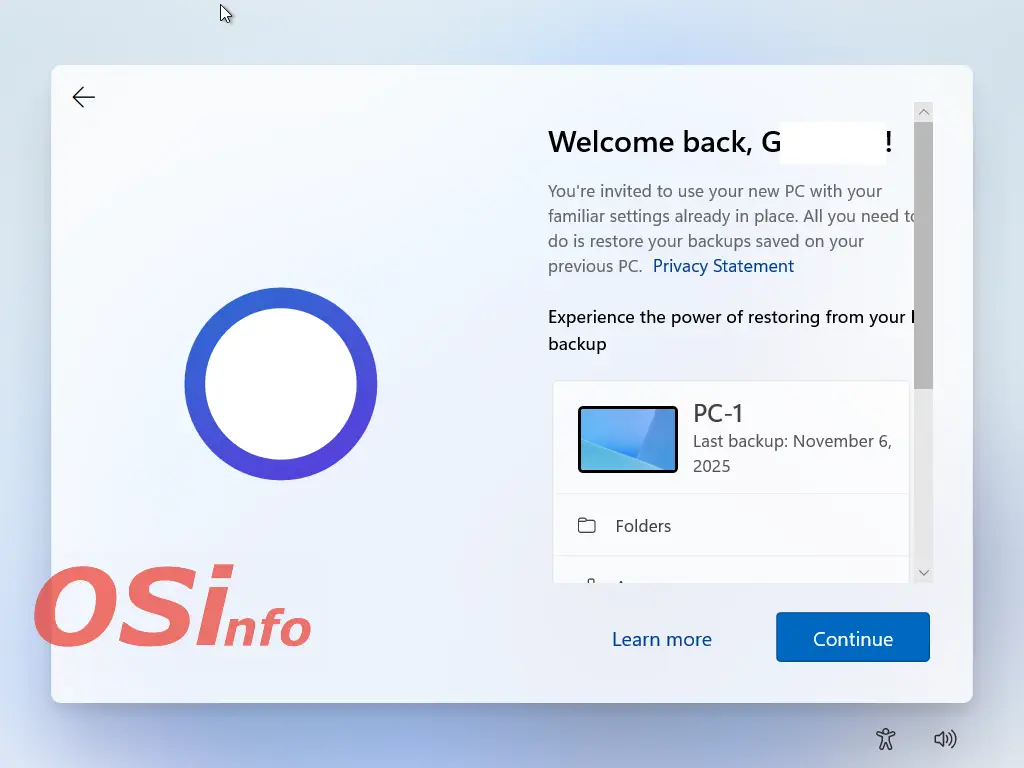
A list of computers from which we can import settings will appear. Select from the list or configure as a new device.
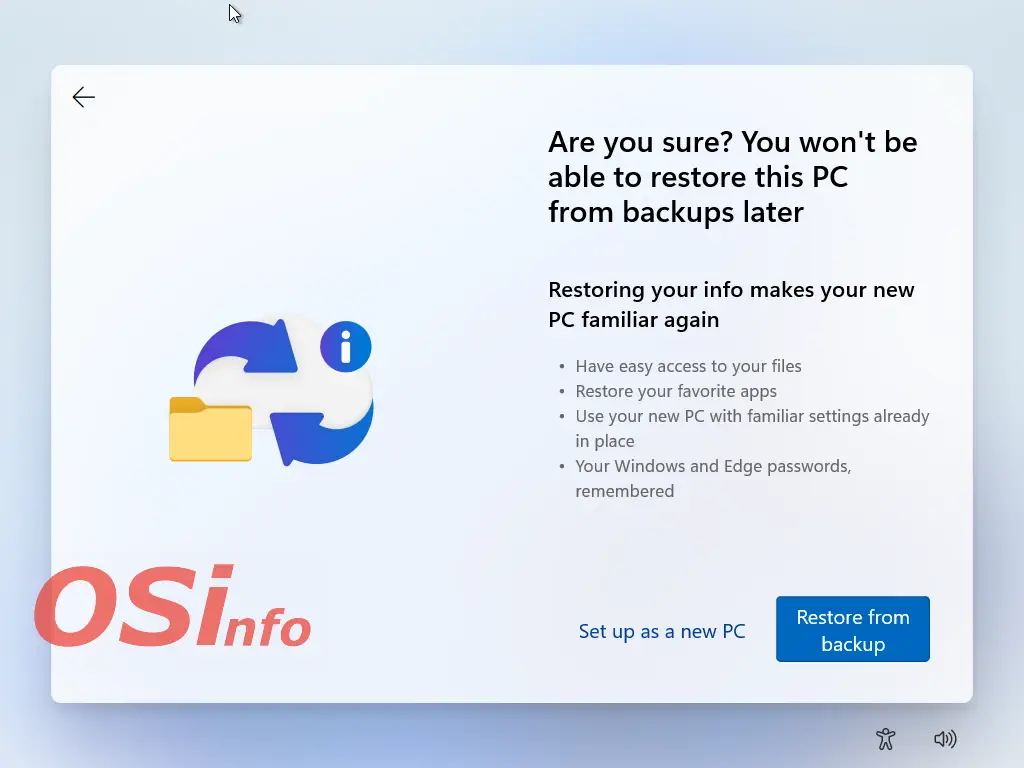
Then we wait.

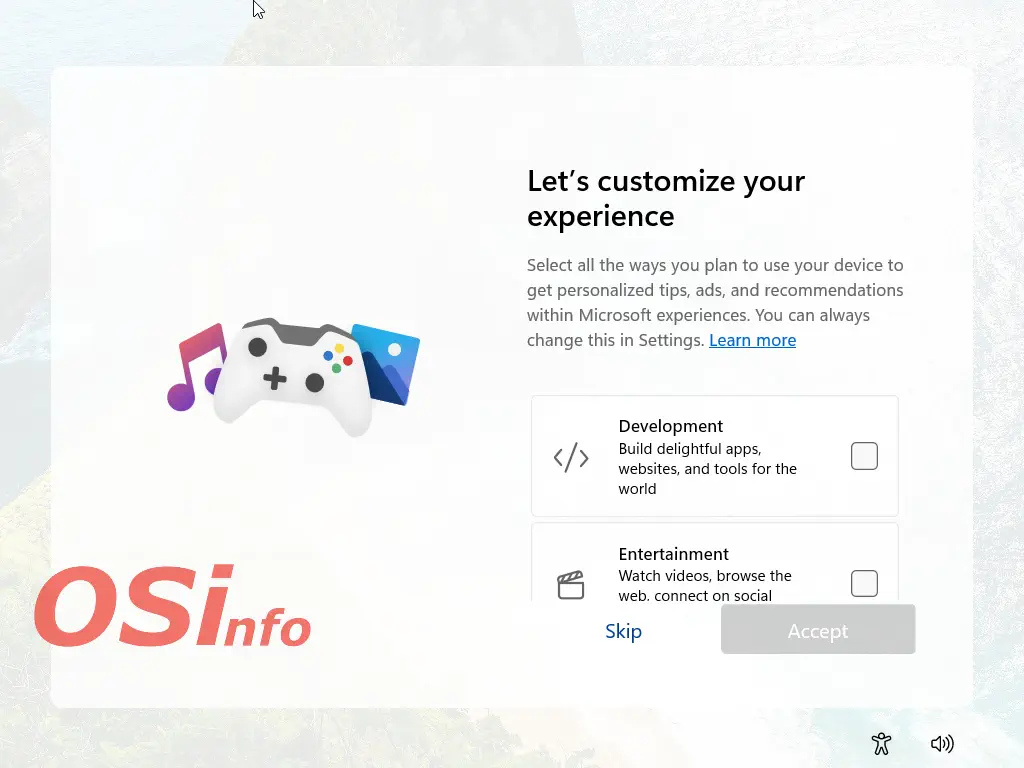
Next step, next wizard. Here, we can adjust our preferences. We can skip or select items from the list and accept.
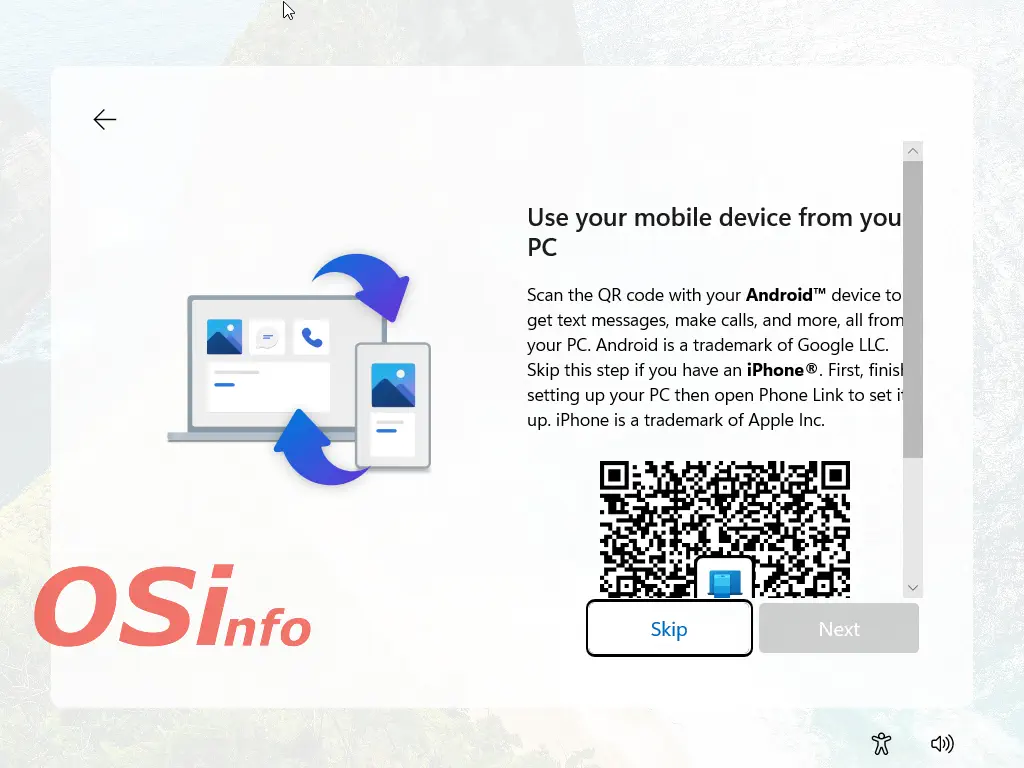
The next window allows you to configure the connection between your phone and computer. Pairing the devices allows you to access your phone's content, notifications, and messages directly from your computer.
The following settings allow you to back up files using OneDrive.
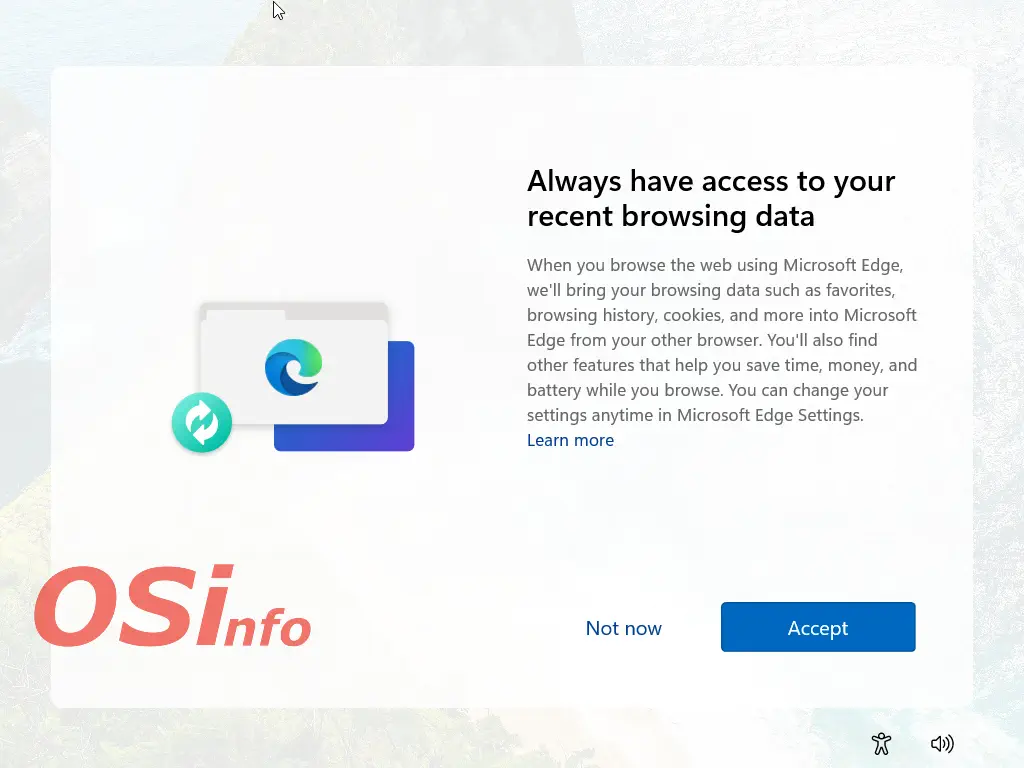
The following settings apply to the Edge browser.
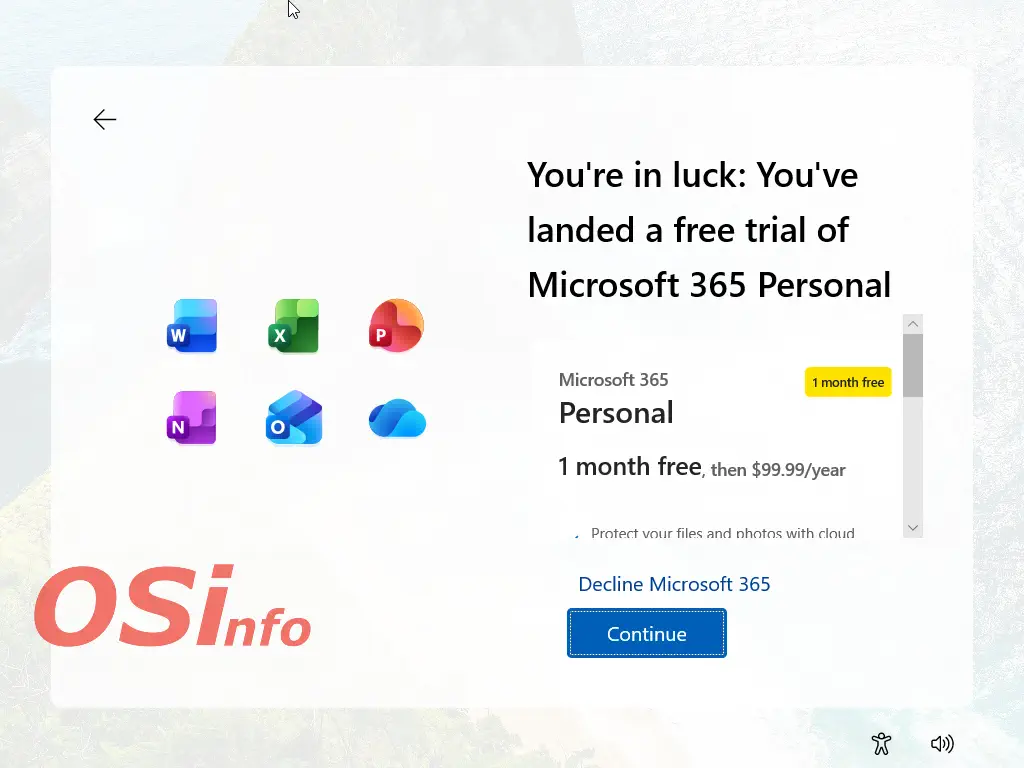
Another window. Here, we can take advantage of a free month of Microsoft 365. If we do not want to use it, we click on the small text “Decline Microsoft...”.
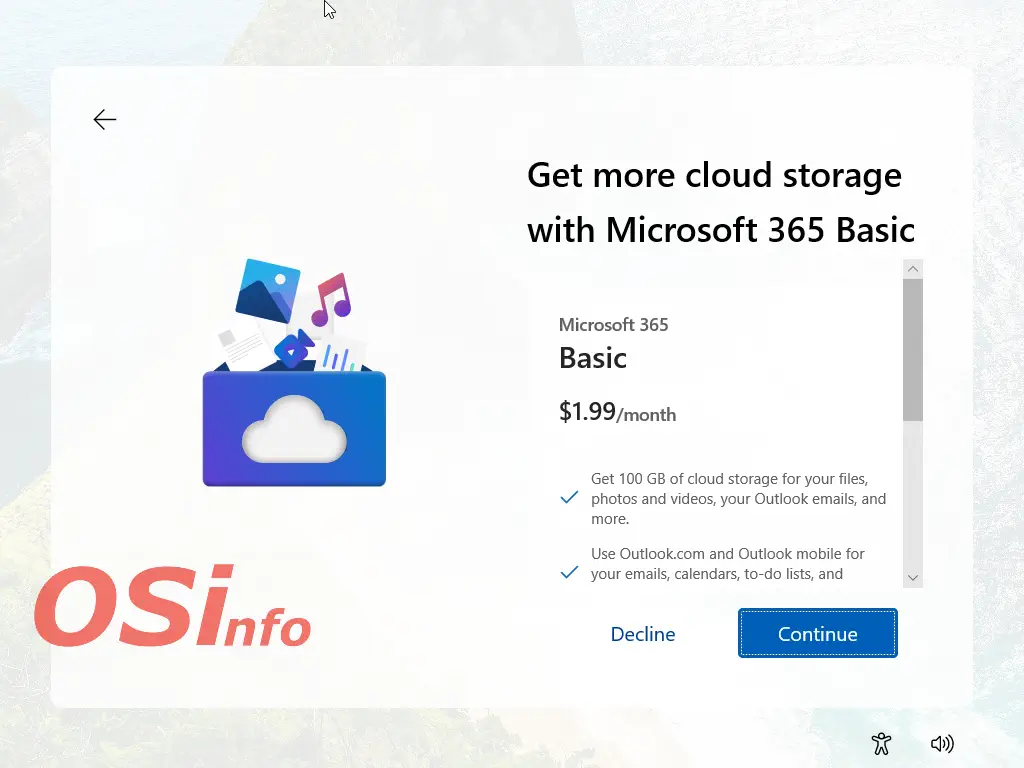
More settings. Additional cloud storage space—for a fee. We can click “Decline.”
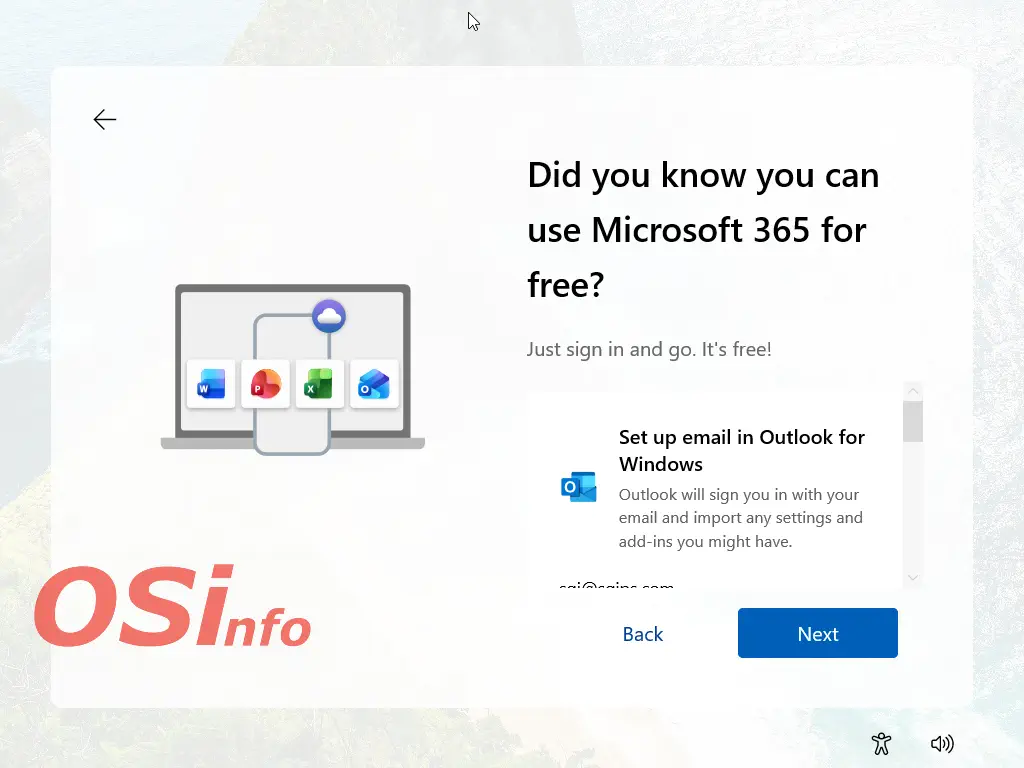
The next window is a reminder about the web version of Microsoft 365. Click “Next.”
The next window concerns the Game Pass subscription. The subscription involves fees. If you do not want to use it, click “Skip.”

That's all. At this stage, we should see the desktop.
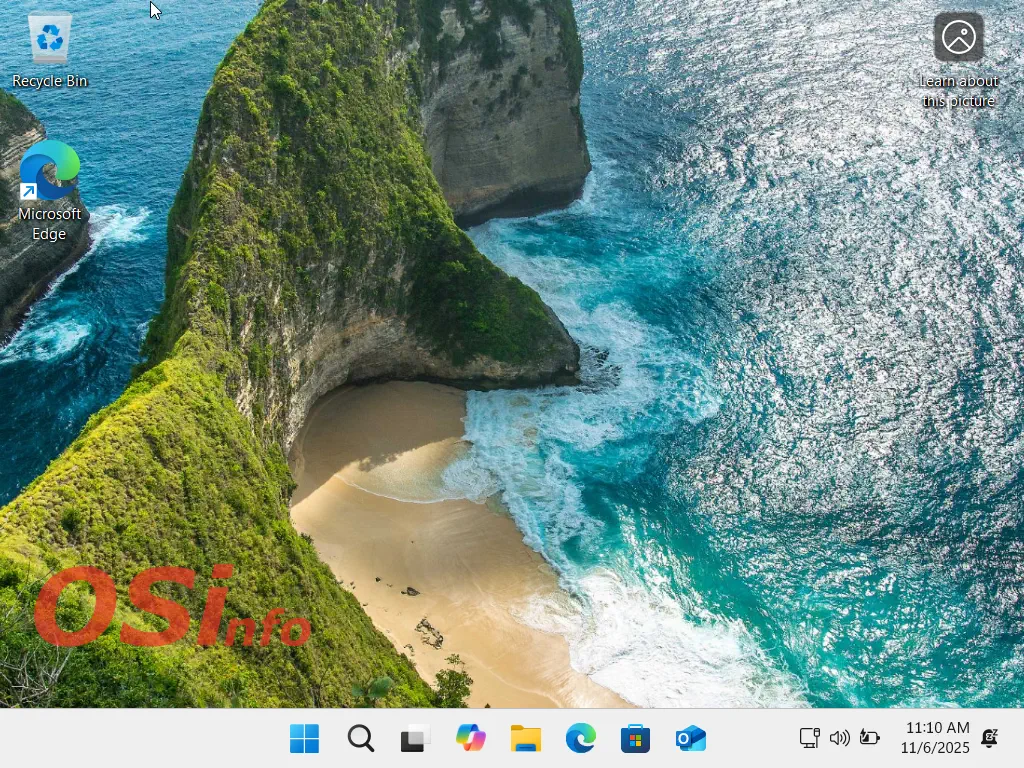
This is what the Windows 11 installation process looks like. In the future, with updates to the system version, some of the steps may look slightly different.
Add new comment