
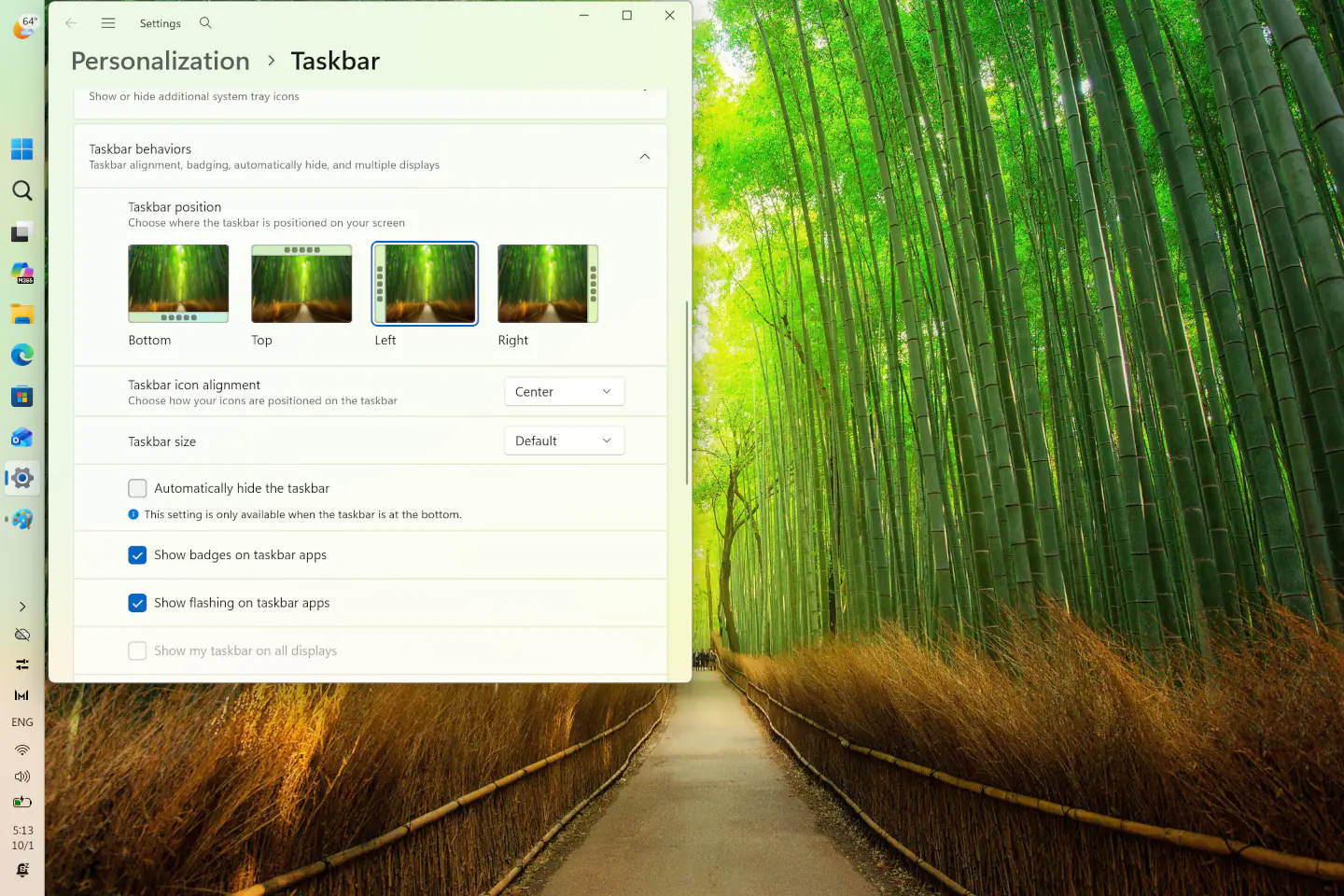
When Windows 11 was released in 2021, it lacked many features familiar from previous versions of Windows. One of these was the inability to reposition the taskbar.
Among the many shortcomings in Windows 11, one of the most frequently cited examples was the inability to place the taskbar at the top or on the sides of the desktop. A feature that had existed in Windows for decades was removed in Windows 11.
There were many such examples in Windows 11. Previously, it was also impossible to place the Start button itself on the left side of the taskbar. This feature has returned after several years.
This time, five years after the system’s release, the option to move the taskbar to the side or top of the desktop has returned to Windows. However, it’s not as simple as it might seem. In the past, to change the taskbar’s position, all you had to do was click and drag it to the desired side or the top of the desktop.
Windows 11 26H2 introduces this option, but only through Settings. So how do you do it?
The quickest way to access the settings is to right-click on the taskbar and select “Taskbar Settings” from the menu. There, in the settings, you'll find the “Taskbar Position” section, which includes four buttons: Bottom, Top, Left, and Right.
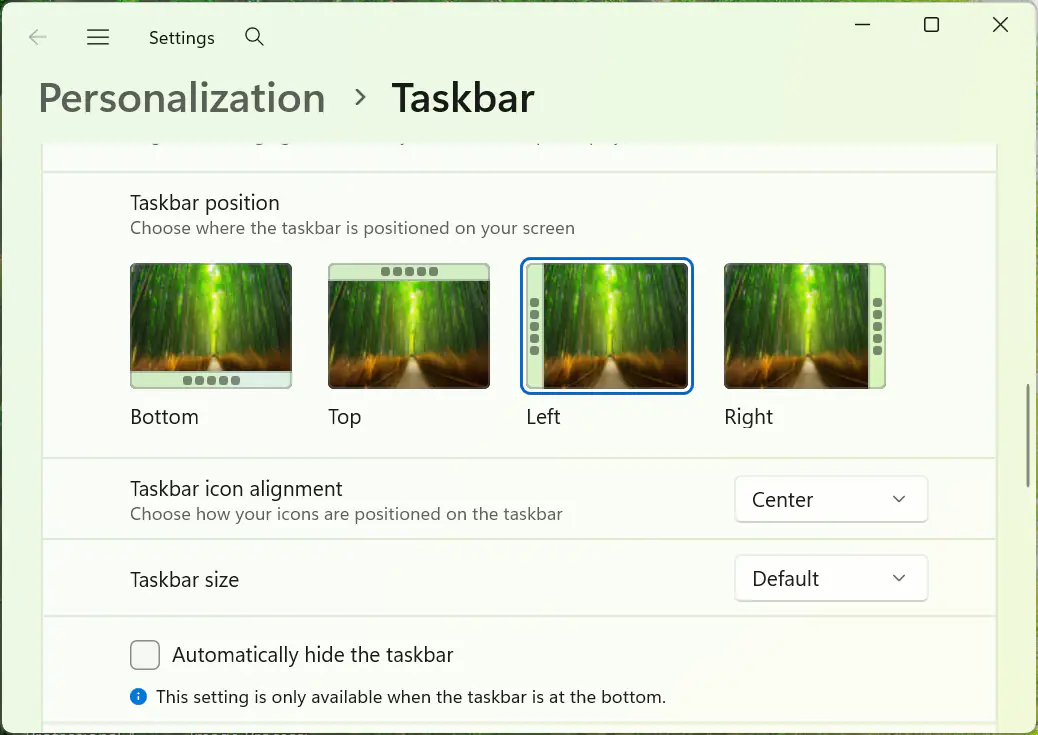
Here’s another important note. For reasons that aren’t entirely clear, “non-standard” taskbar positions cannot be combined with the option to automatically hide the taskbar.
So, as we can see, in Windows 11 26H2 we can change the taskbar’s position, but there are still some limitations.
Add new comment