

Sometimes you need to change the boot order or other settings in UEFI. However, the computer usually doesn’t respond to standard keyboard shortcuts during startup. What should you do in that case?
1) Keyboard shortcut at startup
By default, you can access the BIOS/UEFI settings using the factory-set keyboard shortcut.
Which key should you use? It depends on the computer manufacturer and model.
Common options include the following keys:
- DEL
- F2
- ESC
On some laptops, these may be F1, F3, F6, F10, or F12. Sometimes in combination with the Fn key.
In the past, a message would appear during startup indicating which key to press to enter the BIOS/UEFI. Nowadays, the computer boots up so quickly that there are no longer any such messages, or the window of opportunity to press the key is very brief. If you are unable to access the UEFI settings this way, you can try the following options.
2) Windows 10/11 Settings
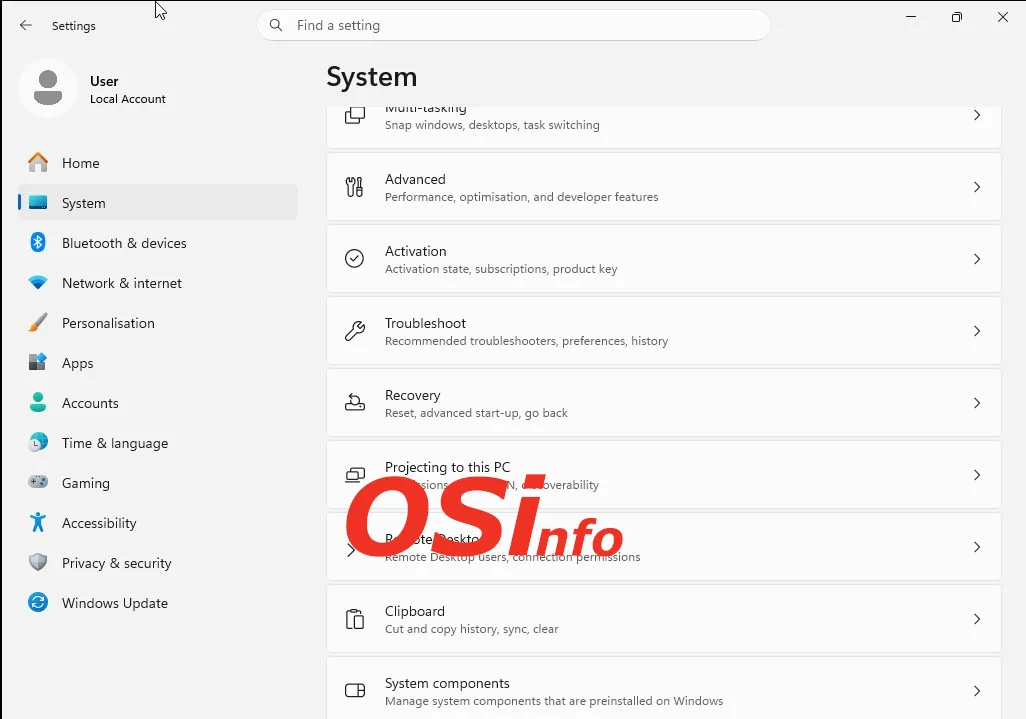
There’s an easy way to do this in Windows 11. Once you’re logged in, go to Settings -> System -> Recovery
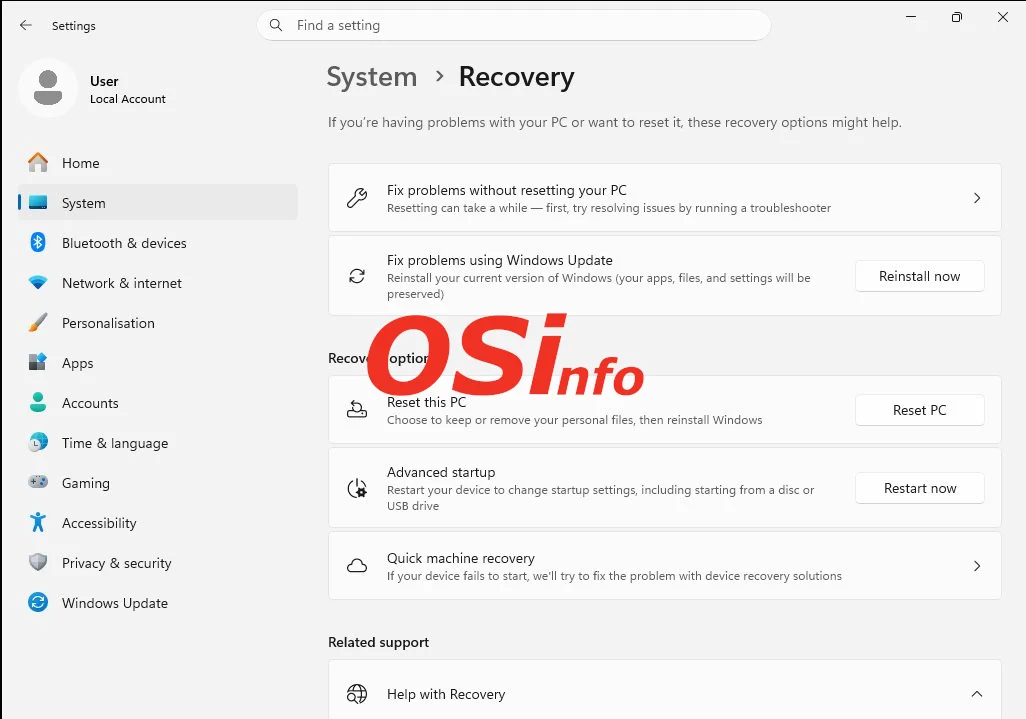
Click on Recovery, and on the next screen you should see the Advanced Startup option with a "Restart now" button.
Alternatively, you can use the Win+R key combination to open the Run dialog, type "ms-settings:recovery", and confirm by clicking OK.
You can also find these same options in Settings -> Windows Update -> Advanced options.
Settings -> System -> Recovery
Advanced Startup
Restart now
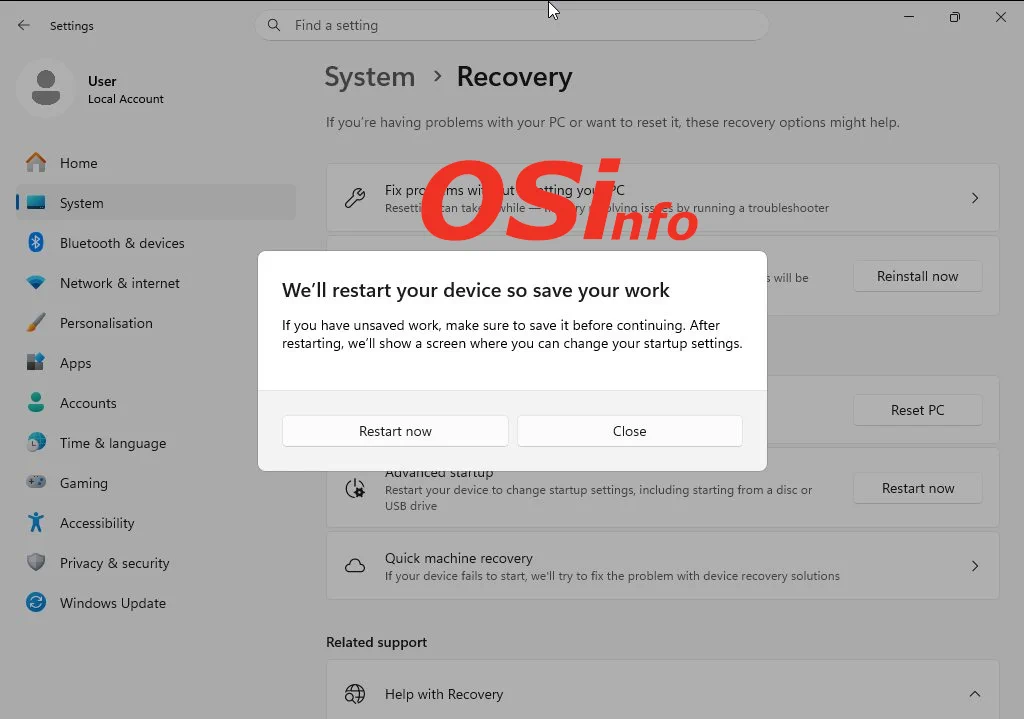
After restarting, the system will boot into recovery mode. On the first screen, select "Troubleshoot."

Next, select Advanced Options

The next window contains the option we're looking for—UEFI Settings
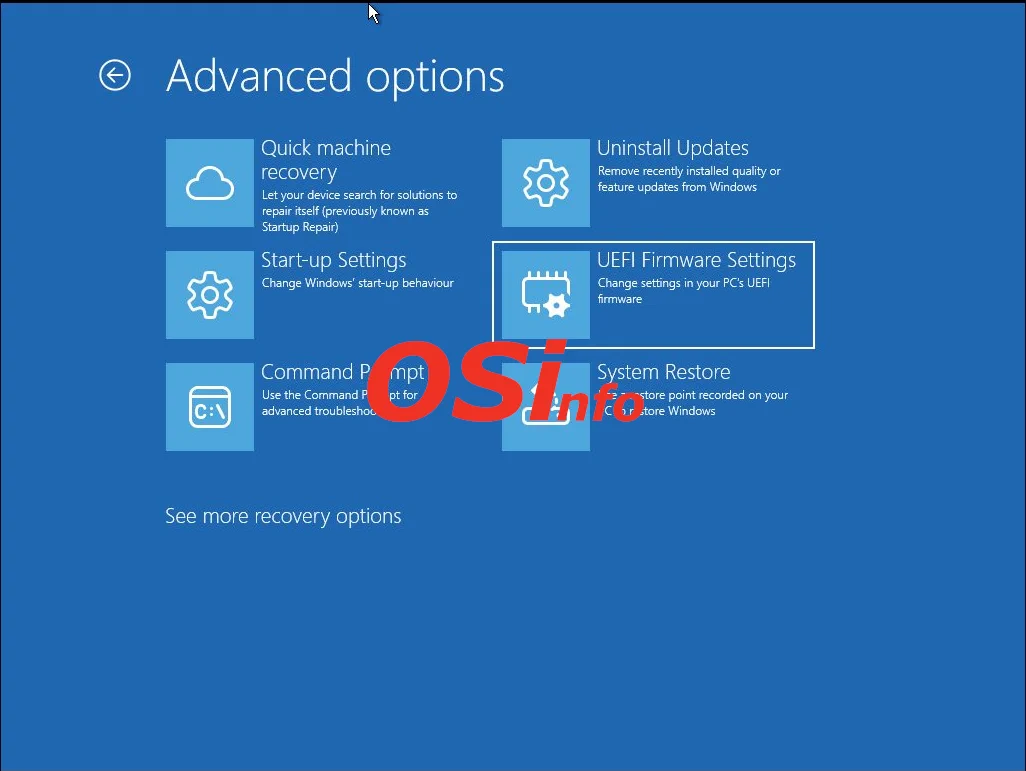
After selecting an option from the previous screen, click the Restart button.

After a moment, the computer will restart and automatically load the UEFI settings.
3) Login screen, Shift + Restart
The login screen includes a button that allows you to shut down or restart your computer. If you click the "Restart" option in the menu while holding down the SHIFT key, the computer will restart in recovery mode, as described in step 2.

4) Restart into recovery mode using a command
Another way to enter Recovery Mode is to use the command shutdown /r /o /f /t 00
You can type it into the Run dialog (accessed by pressing Win+R) or at the command prompt. Note: If any programs are running, the command will close them automatically without prompting (the /f switch). The computer will restart in recovery mode, as described in step 2.

5) Restart directly to UEFI
You can restart your computer directly into UEFI settings, bypassing recovery mode. To do this, open a command prompt with administrator privileges. Then type the command shutdown /r /fw /t 0 and press Enter.

After a moment, the computer will restart and load the UEFI settings.
6) Devices based on ARM processors
The situation may be slightly different on laptops with ARM processors, such as the Surface.
Here, the procedure may be similar to that used on smartphones. On Surface devices, you should start the computer by pressing the Power and Volume Up buttons simultaneously. After a moment, release the Power button while continuing to hold the Volume Up button until the startup screen appears.
7) Recovery mode when the system won't start
The last option allows you to enter recovery mode even if, for some reason, the system won’t boot. What do we do?
Turn on the computer and wait for the system logo to appear. As soon as it appears, press the Power button to turn off the device.
Repeating this procedure three times will launch recovery mode as described in step 2.
Back to top
Add new comment